
When going on international trips, the one important carry-on travel gadget that you shouldn’t leave at home is your phone. Yes, it’s essential for booking transportation, translating signage, and taking photos. But it’s also particularly handy for another common travel task: converting currencies. After all, you wouldn’t want to go over your budget while touring or buy something that’s actually cheaper at your local store.
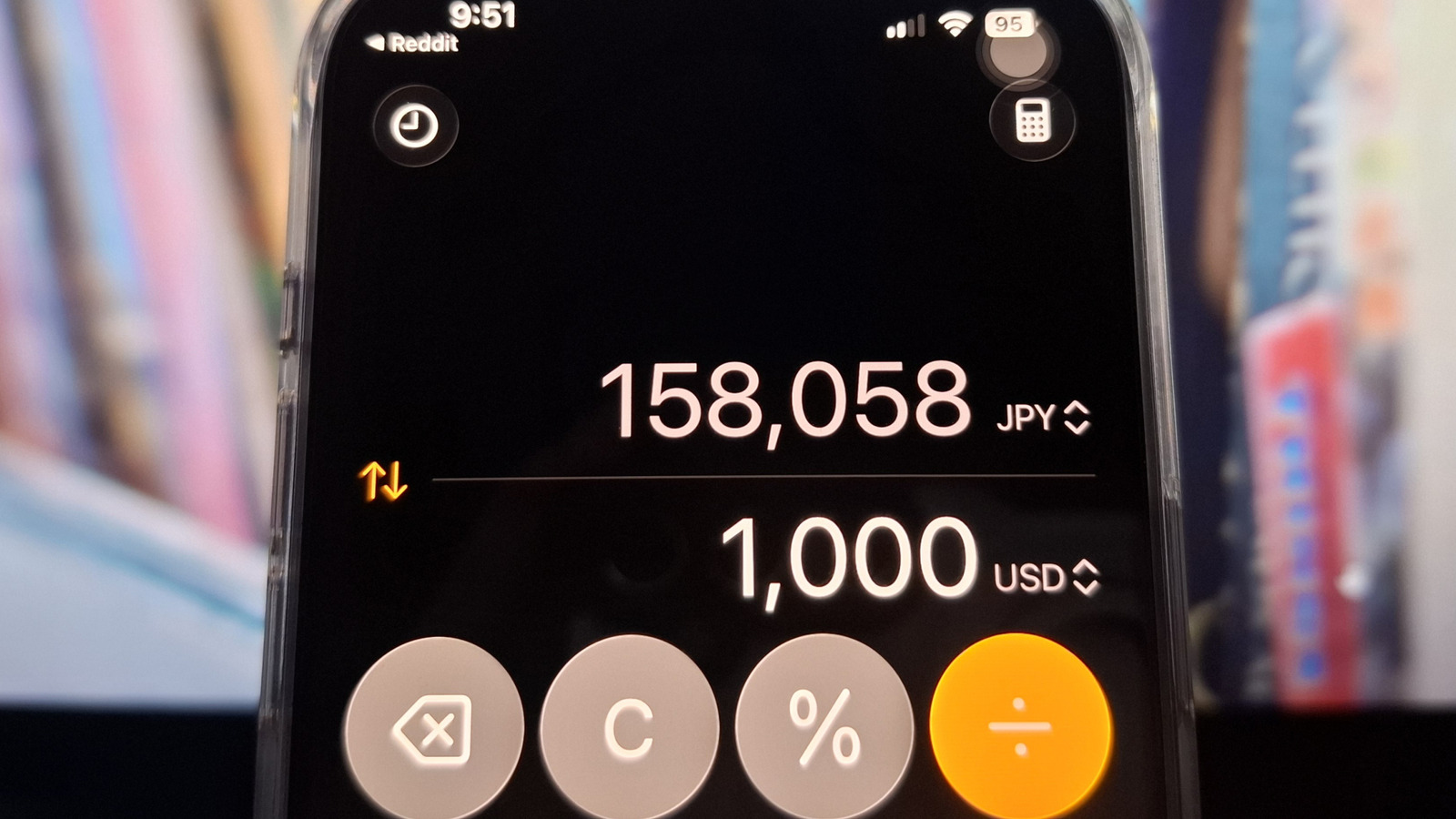
Checking exchange rates is usually just a matter of pulling up your browser and doing a quick Google search. With your iPhone, though, you don’t need to repeatedly go online. There’s a nifty iOS feature in the Calculator app you can use instead. The currency conversion, part of the Convert feature, lets you convert currencies on the fly. It supports a wide range of currencies, including the US Dollar, the UAE Dirham, the Mexican Peso, the South Korean Won, and the Swedish Krona. This tool is powered by Yahoo Finance, so you’ll need to connect to the internet every now and then to update the conversion, but otherwise it readily works offline, which is useful during those adventures to more remote locations.
How to convert currencies from the iPhone Calculator
To access the built-in currency conversion tool in your iPhone Calculator, all you have to do is launch the Calculator app and follow these steps:
- Tap on the calculator icon in the upper-right corner.
- Switch to Convert.
- Press the up and down arrows to the right of the default unit at the top.
- Go to the Currency tab.
- Choose the currency you’re converting from.
- Press the up and down arrows to select the default unit at the bottom.
- Select the target currency you’re converting to.
- Enter how much you’d like to convert.
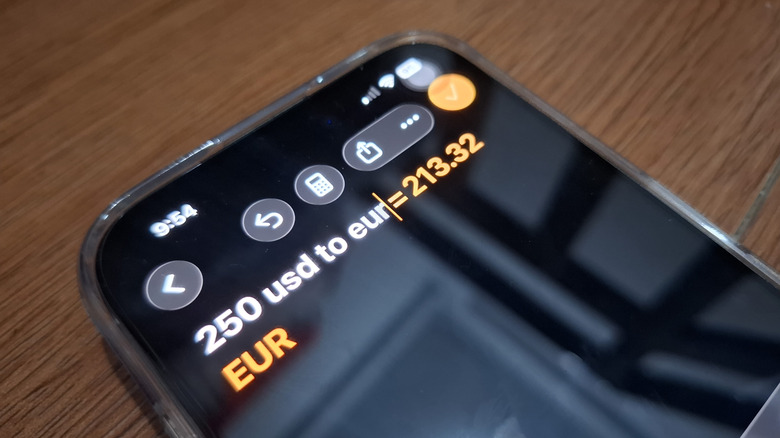
If you’re not a fan of setting up the conversion interface, you can also type what you want to convert in your iPhone Calculator’s Math Notes, introduced as one of the biggest iOS 18 revamps in iPhone’s Notes and Calculator apps. Press the calculator icon again and head over to Math Notes. Then, open a new note by tapping on the pen icon at the bottom. From here, just type the currency conversion you need as if you’re just Googling it. For instance, “eur to usd =” to get the Euro-to-USD conversion. If you want to be more specific, try “2070 usd to jpy” to convert US$2070 to Japanese Yen or “100 gbp to usd” to convert £100 to US Dollars. The conversion will automatically appear on screen.













Leave a comment